Comparing Bins |
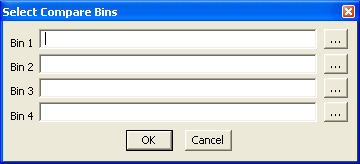
TunerPro allows you to select up to 4 bins for easy comparison. To load comparison bins, in the "Compare" menu choose "Load Compare Bins...". You will be presented with the following dialog:
Browse to each bin using the "..." button. You needn't use all 4. Once your compare bins are selected, you will be able to see, simultaneously, the values of both the current editable bin as well as the active comparison bin.
To select an active compare bin, you can select the desired bin from the "Compare" menu or you can use the quick-key command. Cntl + 1 selects the first compare bin, Ctrl + 2 selects the second, and so on. If a bin is not loaded into a slot, you will not be able to select the slot.
The default active compare bin after bin selection is the first slot that contains a bin, i.e. if slot 1 does not contain a bin but slot 2 does, when pressing "OK" in the selection dialog, the default compare bin will be slot 2.
Comparing Constants:
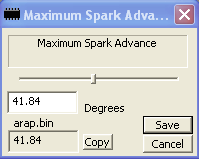
To compare constants, select the desired constant from the constant list. You will be presented with your editable bin's value for your that item. Below that you will find the name of the compare bin followed by it's value for the item. You can copy the comparison bin's value to the editable bins value by pressing the "Copy" button.
Comparing Flags:

To compare flags, select the desired flag from the flag list. On the left side of the flag editor is the editable bin's flag value. On the right is the comparison bin's value.
Comparing Tables:
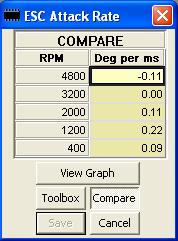
To compare tables, selected the desired table in the table list by double clicking. The table editor will open with the editable bin's information. To view the comparison bin's table, click the "compare" button. If a compare bin has not yet been selected, you will be presented with a browse window to select the compare bin. Once selected (or if already selected), the table editor will change to show the compare bin's values. When in compare mode, the table background changes to the color you specify in the preferences ("Non-editable Cell background color").
If you're viewing the comparison table in "Difference" mode (as selected in the Table Editor Toolbox), you will be present with the difference between the editable bin and the compare bin (editable - compare). For instance. If the editable value is 7.36 and the compare bin's value is 7.27, Difference mode will show 0.09, meaning the editable bin is .09 above the compare bin.
If you're viewing the comparison table in "Absolute" mode, you will be presented with the compare bin's information "as is", as though you're viewing it as an editable bin.
To copy values from the comparison bin, use functions.
You cannot save a table when in compare mode. You must toggle to edit mode in order to press the save button.
See Also: Editing Bins, Editing Tables, Difference Tool
TunerPro Help V1.2 Compiled 7/8/09 21:10